People often maintain that they don’t need a special tool like git for version management. I believe that most people are using some kind of version management strategy when working on projects, but that they use ad-hoc strategies which have specific problems. So this is not a pure “This is why you need git” post. Rather it is an exploration of the difficulties of version management and how a tool like Git solves these problems, along with the issues of solving them by ad-hoc means.
Project change axes
Time
Every project changes over time. In some cases, you open a blank document and type or paste things into it. In others, you start with one thing and change it into another. But if you are making something that did not exist before you are going at the very least between the before state and the after state. Some of the state changes are never committed to disk, like the intermediate typing you do between saves. One quickly learns to save frequently so that one doesn’t lose to much if something goes wrong. Of course, modern software can also save frequently for us. Let’s call a “version” of our project the state of the project at one of these save points.
It is useful for us to retrieve different versions of a project. For the simplest case where we are just editing our document and pressing save from time to time, the only information we need to refer to different versions is the time. So we can say “Show me what the project looked like yesterday”, or perhaps “Show me the work that I did since yesterday”. To accommodate such a request, we could get into the habit of saving the project with different names from time to time. For instance, we could have project_2016-12-28.docx and a project_2016-12-29.docx and so on. This strategy works relatively well for the time axis on a single-file project. Notice I have used ISO date format which means the versions will sort correctly when sorted by filename.
Another popular strategy is to use something like project_v1.docx, project_v2.docx and then use the timestamp of the file to figure out when it is from. This strategy is less robust to capture time information, because it is relatively easy to change the dates of files inadvertently by accidentally saving when no real change has been made, therefore destroying the date information. It is also relatively common to add some kind of note about what changed in this version to the filename. For instance project_2016-12-28_new_abstract.docx. A very bad way of handling version information is using words like “first draft” or “final”. This is because there isn’t a good ordering for these in file viewers, so “project_final” will sort before “project_first draft”. It is also inevitable that these versions will have versions themselves, leading to project_final_v2_realfinal_handin_v3.docx.
Things get a little harder if a project has multiple files. For instance, there may be an Excel spreadsheet where we are doing calculations in addition to our Word file. It may be that we edit the Word file more frequently than the Excel file. We now have a choice to save copies of the files separately or to place them into a folder and make copies of the folder. All the same naming conventions hold.
Space
Let’s say you e-mail a copy of your project_2016-12-28.docx to a friend for their input. Is this the same version or a different one? In practical terms it doesn’t matter that the copy is made unless it is edited. But the fact that a copy has been made allows for independent edits to be made. How will we keep track of this? The way most people handle this issue is to use what computer scientists call “locking”. As soon as you send the mail, you stop editing your copy until you receive back the copy from your friend. If they used track changes, you can easily incorporate their changes into your document. This strategy actually avoids dealing with the space issue. Syncing solutions like Dropbox also avoid the space axis by making the shared folder be one “place” which is synced between people instead of allowing different versions to exist at the same time.
Another way is to add location information onto the filename again. You could ask your friend to add their name onto the filename so that you can see the version. When they mail it back to you, you can see project_2016_12_28_friend.docx is different from yours and take the right action.
Concept
Sometimes you may want to experiment with a slightly different version of a project. This happens quite frequently in programming, where there may be different ways of achieving the same goal. It may be useful to compare one algorithm to another on the same data.
A very common way for this to be handled is using comments in code. You comment out the one algorithm and comment in another and re-run the program. Of course, you can also make a copy of the file, but often in programming the filename is significant and cannot carry as much information as we use in office documents or folders.
Summary
To summarise the above axes, we saw that projects change over time, in different places, by different people and for different reasons. Most people have some way of noting these changes in the file names of their projects.
The git way
Version control tools exist because encoding the information along these three axes in the file names or in comments in code is messy and difficult to use for all but the simplest projects. Here is how git solves the problem. I am going to be using git commands in the commandline to illustrate the process. Install git using
these instructions.
The first big idea is that the current version (called the “working copy” in git) and other versions will be stored in different places. Git creates a .git folder for all the versions of the project. This folder contains several pieces of information about the project, but it is sufficient to imagine that git can “archive” the files in the project and copy this archive into the .git folder for each version. Git calls the whole bag of archive the “repository” and the specific archive a “commit”. Along with the actual file, git also stores the information we discussed before. It stores the time when the commit was made, who made the commit and a message (called the commit message) which explains what changed.
Simple time axis workflow
Let’s make a simple project and show how git allows us to track the same things we would have with a filename scheme including dates:
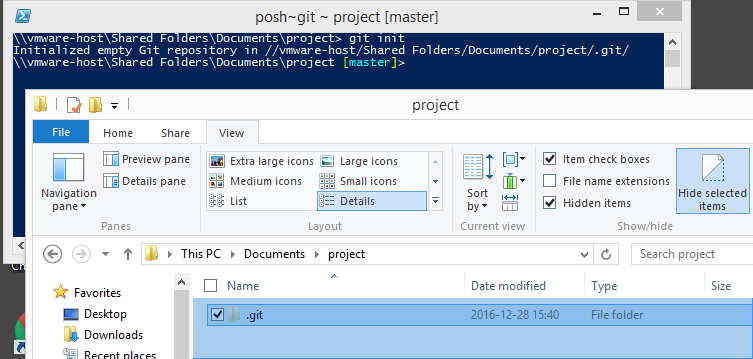
The command git init will create a folder called .git. This contains all the commits and additional metadata.
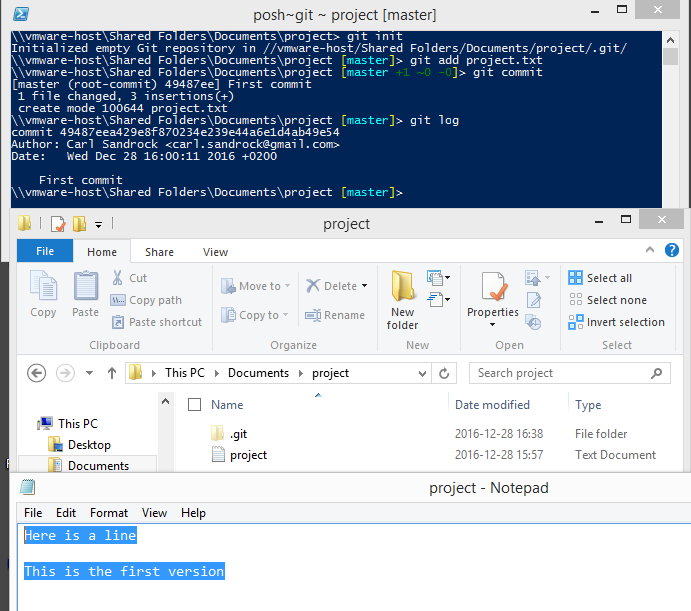
Now, we create a file called project.txt and write some lines in it. To get it into the repository, we first git add then git commit. Once this is done, we can check the history with git log.
Note that the log shows who made the commit, a note about the commit and the exact time it was made. If we continue to add new commits in a linear fashion we have completely replaced the filename method. Also note that the commit itself has a name which is a long string of hex digits (49487eea429e8f870234e239e44a6e1d4ab49e54 in the screenshot). This is a hash, or a number made up by boiling down the contents of all the files in the commit. This means each commit with different files should have a unique name.
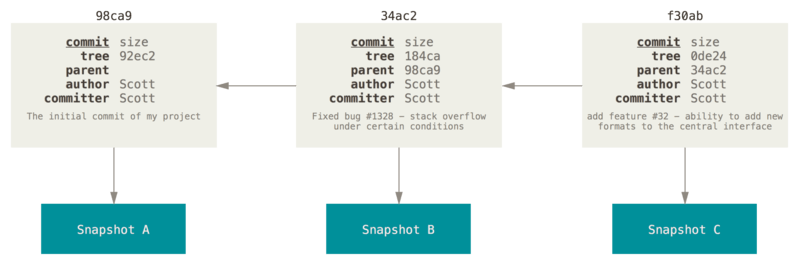
Another interesting aspect of a git commit is that it knows which commit came before it. So in the picture below showing multiple commits, each one points to the one before.
Space
To handle the space dimension, git supplies the
clone command which allows us to create a copy of a repository. This is different from simply copying the folder, because the
clone command will allow us to track the different repositories. This can be done on a local system, for instance to make a copy of the repository on a removable drive. It can also be done over a network, and is the mechanism behind being able to have a version of the repository on a web server like
GitHub.
Concept
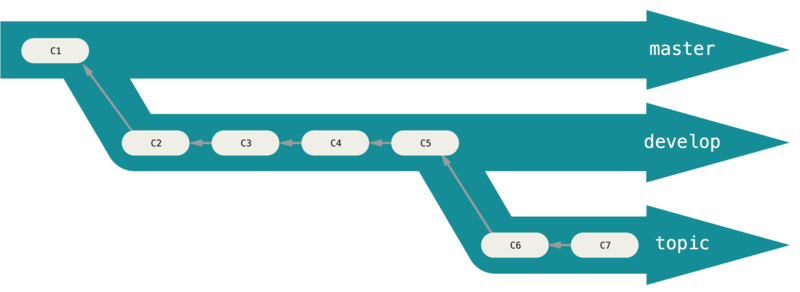
Lastly, when we want to have different concepts and compare them to one another, we can create branches with git branch. It is easier to think of branches as groups for commits. This allows us to continue development in one group while easily going back to another. This is something which has no equivalent in the filename system
Final word and further reading
Now, this is not supposed to be a git tutorial. It was meant to show the things we need version control for and what git supplies to fix them. If I have succeeded in whetting your appetite, I highly recommend that you download git and read the git book (at least the first couple of chapters).
Leave a Reply