Author: alchemyst

  • Version management strategies

    People often maintain that they don’t need a special tool like git for version management. I believe that most people are using some kind of version management strategy when working on projects, but that they use ad-hoc strategies which have specific problems. So this is not a pure “This is why you need git” post. Rather it is an exploration of the difficulties of version management and how a tool like Git solves these problems, along with the issues of solving them by ad-hoc means.

    Project change axes

    Time

    Every project changes over time. In some cases, you open a blank document and type or paste things into it. In others, you start with one thing and change it into another. But if you are making something that did not exist before you are going at the very least between the before state and the after state. Some of the state changes are never committed to disk, like the intermediate typing you do between saves. One quickly learns to save frequently so that one doesn’t lose to much if something goes wrong. Of course, modern software can also save frequently for us. Let’s call a “version” of our project the state of the project at one of these save points.

    It is useful for us to retrieve different versions of a project. For the simplest case where we are just editing our document and pressing save from time to time, the only information we need to refer to different versions is the time. So we can say “Show me what the project looked like yesterday”, or perhaps “Show me the work that I did since yesterday”. To accommodate such a request, we could get into the habit of saving the project with different names from time to time. For instance, we could have project_2016-12-28.docx and a project_2016-12-29.docx and so on. This strategy works relatively well for the time axis on a single-file project. Notice I have used ISO date format which means the versions will sort correctly when sorted by filename.
    Another popular strategy is to use something like project_v1.docx, project_v2.docx and then use the timestamp of the file to figure out when it is from. This strategy is less robust to capture time information, because it is relatively easy to change the dates of files inadvertently by accidentally saving when no real change has been made, therefore destroying the date information. It is also relatively common to add some kind of note about what changed in this version to the filename. For instance project_2016-12-28_new_abstract.docx. A very bad way of handling version information is using words like “first draft” or “final”. This is because there isn’t a good ordering for these in file viewers, so “project_final” will sort before “project_first draft”. It is also inevitable that these versions will have versions themselves, leading to project_final_v2_realfinal_handin_v3.docx.
    Things get a little harder if a project has multiple files. For instance, there may be an Excel spreadsheet where we are doing calculations in addition to our Word file. It may be that we edit the Word file more frequently than the Excel file. We now have a choice to save copies of the files separately or to place them into a folder and make copies of the folder. All the same naming conventions hold.

    Space

    Let’s say you e-mail a copy of your project_2016-12-28.docx to a friend for their input. Is this the same version or a different one? In practical terms it doesn’t matter that the copy is made unless it is edited. But the fact that a copy has been made allows for independent edits to be made. How will we keep track of this? The way most people handle this issue is to use what computer scientists call “locking”. As soon as you send the mail, you stop editing your copy until you receive back the copy from your friend. If they used track changes, you can easily incorporate their changes into your document. This strategy actually avoids dealing with the space issue. Syncing solutions like Dropbox also avoid the space axis by making the shared folder be one “place” which is synced between people instead of allowing different versions to exist at the same time.
    Another way is to add location information onto the filename again. You could ask your friend to add their name onto the filename so that you can see the version. When they mail it back to you, you can see project_2016_12_28_friend.docx is different from yours and take the right action.

    Concept

    Sometimes you may want to experiment with a slightly different version of a project. This happens quite frequently in programming, where there may be different ways of achieving the same goal. It may be useful to compare one algorithm to another on the same data.
    A very common way for this to be handled is using comments in code. You comment out the one algorithm and comment in another and re-run the program. Of course, you can also make a copy of the file, but often in programming the filename is significant and cannot carry as much information as we use in office documents or folders.

    Summary

    To summarise the above axes, we saw that projects change over time, in different places, by different people and for different reasons. Most people have some way of noting these changes in the file names of their projects.

    The git way

    Version control tools exist because encoding the information along these three axes in the file names or in comments in code is messy and difficult to use for all but the simplest projects. Here is how git solves the problem. I am going to be using git commands in the commandline to illustrate the process. Install git using these instructions.
    The first big idea is that the current version (called the “working copy” in git) and other versions will be stored in different places. Git creates a .git folder for all the versions of the project. This folder contains several pieces of information about the project, but it is sufficient to imagine that git can “archive” the files in the project and copy this archive into the .git folder for each version. Git calls the whole bag of archive the “repository” and the specific archive a “commit”. Along with the actual file, git also stores the information we discussed before. It stores the time when the commit was made, who made the commit and a message (called the commit message) which explains what changed.

    Simple time axis workflow

    Let’s make a simple project and show how git allows us to track the same things we would have with a filename scheme including dates:
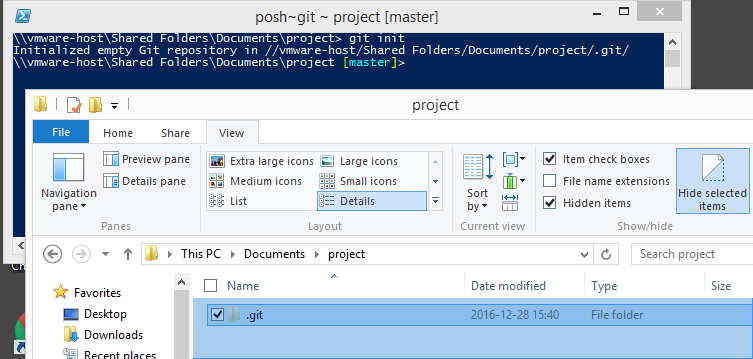
    The command git init will create a folder called .git. This contains all the commits and additional metadata.
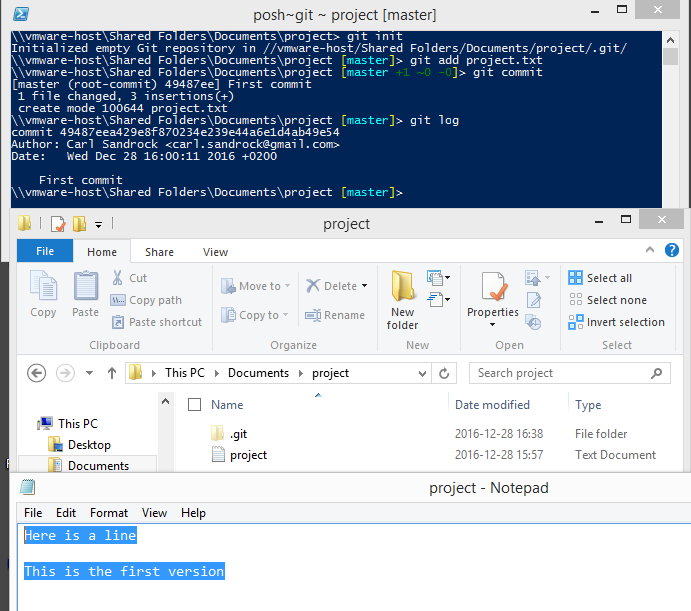
    Now, we create a file called project.txt and write some lines in it. To get it into the repository, we first git add then git commit. Once this is done, we can check the history with git log.
    Note that the log shows who made the commit, a note about the commit and the exact time it was made. If we continue to add new commits in a linear fashion we have completely replaced the filename method. Also note that the commit itself has a name which is a long string of hex digits (49487eea429e8f870234e239e44a6e1d4ab49e54 in the screenshot). This is a hash, or a number made up by boiling down the contents of all the files in the commit. This means each commit with different files should have a unique name.
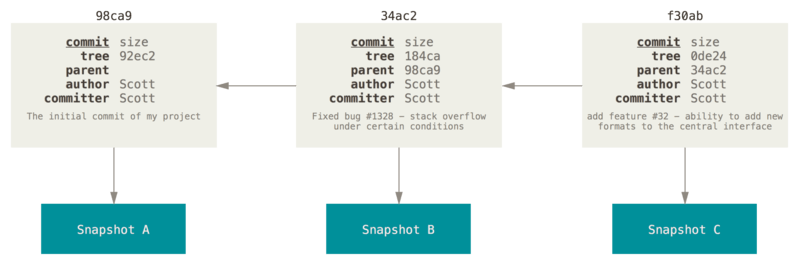
    Another interesting aspect of a git commit is that it knows which commit came before it. So in the picture below showing multiple commits, each one points to the one before.

    Space

    To handle the space dimension, git supplies the clone command which allows us to create a copy of a repository. This is different from simply copying the folder, because the clone command will allow us to track the different repositories. This can be done on a local system, for instance to make a copy of the repository on a removable drive. It can also be done over a network, and is the mechanism behind being able to have a version of the repository on a web server like GitHub.

    Concept

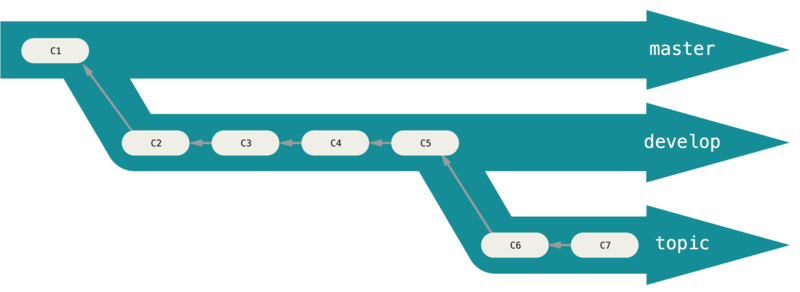
    Lastly, when we want to have different concepts and compare them to one another, we can create branches with git branch. It is easier to think of branches as groups for commits. This allows us to continue development in one group while easily going back to another. This is something which has no equivalent in the filename system

    Final word and further reading

    Now, this is not supposed to be a git tutorial. It was meant to show the things we need version control for and what git supplies to fix them. If I have succeeded in whetting your appetite, I highly recommend that you download git and read the git book (at least the first couple of chapters).

  • Appearance vs semantics

    As our department’s go-to guy for computer-related queries, I have been involved in ushering many people from Word to LaTeX and more recently Markdown (via Jupyter Notebooks). I find myself repeating some thoughts over and over again, so I thought I would take the time to write them down this time rather than have another discussion about it.

    Formatting and meaning

    Many modern computer users use direct manipulation tools like Word in a way which achieves the layout and look of the document they are working on in the shortest amount of time possible. This often involves direct formatting. Many Word users do not use styles or really think about the semantics of their document layout at all. Semantics in this context means that there are two layers to the appearance of documents. I can emphasize a word by writing it in italics. In Word, I simply apply the formatting. But the action of formatting is the same whether I am applying italics because I want to add emphasis or because I want to format a species name like Saccharomyces cerevisiae. The formatting is handled by the tool, and the semantics are not encoded in the document at all. A human writer or reader would reconstruct the semantics from context, distinguishing between the italics used for emphasis and the italics used for a species name.

    When I started learning how to use LaTeX I was converted to this philosophy of adding semantic content to the document and allowing the document generator to make decisions about how it would look. The LaTeX way of handling the formatting in the previous paragraph would be to use emph{ephasize} for the emphasis and species{Saccharomyces cerevisiae} for the species. So if you’re doing LaTeX the way its creators intended it to be used, you end up looking at a document layer with the words you are writing and the meaning you intend it to have, but not seeing what it looks like until you compile the document. This allows for a great amount of flexibility. I may decide later that emphasis works better when bold rather than italic, for instance.

    The most common issue new users of LaTeX have with the system is that it is often hard to apply the formatting they want. I think this is a direct cause of them not having considered the semantics of their formatting. They just want to know how to get the text to be bold, or a different font or colour or alignment, which are all very simple operations in Word, but often quite hard in LaTeX, for the very reason that LaTeX was designed to separate these small formatting concerns from the meaning layer.

    Now, if you are a certain type of Word user, you may be saying that these concerns look very much like using styles. You would be right. My experience with Word users, however, shows that very few of them aim for purity in their application of styles, and the whole interface of Word is asking you to simply click the formatting buttons you need to get the document to look like you want it to look.

    The web dimension

    Although LaTeX and Word are different regarding the encoding of meaning, their default use is still focused on producing a document within a relatively fixed layout. For the vast majority of users, the target is to produce an A4 page which will either be printed and read or be shown in a simulation of a sequence of A4 pages in an environment like Adobe Acrobat or even just Word itself. Choosing a paper size makes some other choices relatively easy. It is easy to know what size fonts should be displayed as, or what size a picture will be and where it is on the page, as all these things have simple unambiguous answers when working with print.
    The web changes these assumptions greatly. Every viewer is likely to have, if not a different size screen on their device, then a different size for their window. They may have different fonts installed on their system and they may even have overridden their preferences so that their fonts display differently. HTML was designed with a similar philosophy to LaTeX in that the tags encode semantics more than appearance. There is even a kind of similarity to the code. For instance, to emphasise text, you could do emphasis, allowing the same flexibility of formatting I mentioned earlier. Of course, there are also direct formatting tags, but many people advocate removing as much of the formatting details from your HTML as you can, relying on CSS to style the output document. The amazing results of this can be seen at sites such as the CSS Zen Garden, where the same document can look very different depending on the styling supplied. 
    Even if we’re not going over the top like the Zen Garden, we may see the benefit of allowing flexible layout when rescaling a window or viewing a web page on a phone with a smaller screen. I think everyone can agree it is more convenient to view a web page which nicely reflows and uses sensible font sizes, than trying to read a PDF on your phone.

    Markdown (and the Jupyter Notebook)

    This brings me to Markdown, which aims to be a more easily writable format for producing HTML. It is being used as the default text entry method in Slack and the Jupyter Notebook. Since it is aimed primarily at the Web, it inherits many of the semantics/formatting distinctions from the other tools. When you look at the syntax of Markdown, you will notice that there are very few commands or formatting options which allow the user to determine what text will end up looking like. This is disconcerting for users who are used to applying formatting for the sole purpose of obtaining a particular visual result, and they often end up hunting through the various options to get the effect that they are looking for without thinking about the semantics. I recently found a document where the author had used #### in front of a paragraph in order to obtain a bold text effect when in fact #### is used to produce a level 4 heading.

    Formatting advice

    Now that I have talked about what I see as one of the major conceptual hurdles encountered by people migrating from Word, let me give my advice. When producing a document using one of the markup systems, resist the temptation of applying any direct formatting in the first draft. Focus on the content of the document and apply semantic markup only. Distinguish between heading levels using the tools provided (section,

    or #). Restrict your check of the rendering to check that there are no errors in the processing (so don’t check if the document “looks” right, just check that all the text you have written ended up in the final output and has the appropriate semantics). Once you have done that, figure out how to handle formatting in a way which doesn’t require direct formatting. Style files for LaTeX, CSS for HTML and Markdown which results in HTML output. Also, before you start fiddling with the formatting, try hard to live with the default formatting, as this will allow the maximal freedom for downstream users. When you make a decision about how wide the text should be because it looks good on your screen, you may be negatively affecting the experience of a user with a wider or narrower screen. Similarly, try to be considerate of scaling in inserting things like pictures. Avoid direct sizes like 300px and rather use relative sizes (like 60% if you want the picture relative to the screen size, or 100em if you want it relative to the font size), this will make your output scale correctly on output devices.

    If you are viewing your output on a web browser, try to change the size of the window and see if the formatting is still the way you like it. In almost all cases, it will be better to avoid formatting and allow the browser to figure out how to display things rather than micro-managing it.

    Special characters and math

    My final note is about special characters and math. Many word users still use the Symbol font to include special characters in their text. The Unicode standard has solved this problem in a far better way. The drawback of using Symbol in Word is that it doesn’t allow for easy reformatting of your document later. For instance, if I had used a capital D and symbol font instead of ∆ in this sentence, you wouldn’t be able to select it and reformat it in Arial, as the symbol would turn back to a D! Using proper Unicode symbols allows you to copy and paste into text-only fields on Facebook, WhatsApp Web, Slack and the Jupyter Notebook. Learn how to do entry for the platform you are using.
    For mathematical formulae, it is worth your while to learn a little bit of LaTeX math syntax. It is memorable and easy to type and is used in the latest version of the Word equation editor:
    These shortcuts will save you time in all these environments and are the same in the Jupyter Notebook.
  • Efficient compiled binaries aren’t “running C code”

    I use Python for most of my programming needs, and since the CPython interpreter is not particularly efficient, it is relatively common for people to write the CPU-intensive bits of their code in other languages like C, C++ or (for numerical work) Fortran. Python allows for a great deal of flexibility in defining modules in other languages and using their compiled routines with little overhead.

    I have developed an issue about how people talk about this as though the languages themselves were in play at that inner level. People will often say: “Python is slow”, then when you point out that libraries like NumPy make many tasks quite fast, they will retort that NumPy calls out to C and Fortran extension code. Often they will express this as actually “running C code”. I take issue with this, because there isn’t much left of the original language when compiling to native machine instructions. Any toolchain which allows you to produce efficient binaries could have been used.

    This argument relates to a similar argument which has C being the base of all languages, since many interpreters and compilers are themselves written in C. People will sometimes scoff at people using other languages because those languages are effectively a thin wrapper around the “underlying” C code. This is wrong, because if you wrote a compiler for a new language in C and compiled it to produce a binary, the binary you are running which compiles your new language is an independent thing.

    Many languages are self-hosting, which means that their compilers are written in the languages themselves. This is not surprising when you consider that the first C compiler was probably developed through a bootstrapping process which may have included manual assembly of code to a rudimentary compiler, which was then used to compile subsequent versions. Once a good compiler exists, it is unnecessary to bootstrap this way. You’re probably better off just writing your compiler in a different language which already has a good compiler. In fact, you may be able to save time by writing a compiler which produces C code rather than native machine instructions, and then use a C compiler to compile that code. Self-hosting is a useful way to show the completeness of your language, but it is not required for your language to be an independent thing.

    It can be hard to reason about this Inception-like chain of compilers producing compilers, but luckily one doesn’t actually have to. Once you have a compiler which takes code written in a language and produces a runnable executable, the language actually doesn’t matter. In the case of Python, there is an interpreter running at runtime, so it is accurate so say that the particular interpreter is executing tasks slowly. But importantly, the language Python is different from a particular interpreter. I can run the same Python program on CPython, PyPy, IronPython or Jython and get different performance due to the details of how each interpreter interprets the code. Even these interpreters aren’t actually running the code as I wrote it line by line, but rather executing a bytecode version of the code which is the result of a compilation step. This distinction is meaningless in practice, as the mapping of Python code to bytecode is quite simple and relatively one-to-one, unlike the mapping from C code to machine instructions, where most compilers will apply optimisations such that the final instructions are often very different from the code you wrote.

    In summary, languages aren’t fast or slow – interpreters or compilers are more or less efficient. Back to the first point, it may be more accurate to describe the speed benefit obtained by using NumPy as being from using efficient compiled routines rather than “running C code”.

  • Why don’t we just do solar instead of nuclear?

    I’ve been seeing a lot of people complaining about the nuclear deal. There seems to be an especially vocal group who feel that we should be investing in renewables rather than nuclear. Some of these people hold up Fukushima as a warning about how bad things can go with nuclear power. There’s a lot to say about this topic, and I’m not going to take the time to write a book about it, just drop some links and facts for the interested reader.

    First, Fukushima is not as bad as you may think. Specifically, no-one died or is projected to die due to radiation released at Fukushima.
    Second, we want less CO₂ to be produced in the production of our electricity needs, we need to move away from fossil fuels. The nuclear advocates and the solar advocates usually agree on this. The problem is that nuclear fills a niche that solar really struggles with: base load. I went hunting for the most recent information on the South African situation, and I came across this presentation which shows the problem with South African power quite clearly – there are large peaks in usage in the morning and the afternoon in winter. This Eskom infographic has a nicer display of the winter and summer behaviour. I also tried to find good information on the insolation in SA and ended up choosing a weather station in the Richtersveldt for my data since it is located in a nice open area in the best solar position in the country. When you plot these together, you get this graph:
    Power / GW vs Time

    Notice how the peaks take place at times where there isn’t really much sun. This means solar power can’t really supply the power for those peaks directly. More importantly, it can’t help with the minimum demand at 02:00. We would have to store the energy somehow.

    Another issue often bandied about in these conversations is how expensive the nuclear plants would be. The figures I’ve heard are that the nuclear deal is perhaps going to cost around R1.2T for 9.6 GW of nuclear nameplate capacity. People look at that and think “if Solar PV costs around $3/W, we could build the same solar capacity for a fraction of the price”.  The problem, of course, is that the capacity factors for the two technologies aren’t the same. For nuclear they’re around 90%, while for solar they’re around 20 %. This means we would need to install around 43 GW of nameplate capacity solar to produce the same amount of electricity, which costs more than R1.2T just by itself at $3/W. Then we would have to pay for the storage and the refitting of our grid to allow for the distributed generation which the solar plants would inevitably represent. I love solar, but we’re not at the point where it can do the base load generation we would be purchasing with nuclear.

  • More history, some musing about syncing files

    It’s interesting how your tools affect your choices and how you can end up in a place which works for your current needs but doesn’t make the next step you’re trying to get to easy.

    To understand my current situation regarding managing my files, it’s probably best to go into a little bit of history.

    Early computer use: no syncing

    I enrolled as an undergraduate in 1997. When I arrived on campus I was given my very first e-mail address and I remember spending huge amounts of time in the computer labs writing to all of my friends (using a program called Pine, which looked like this):
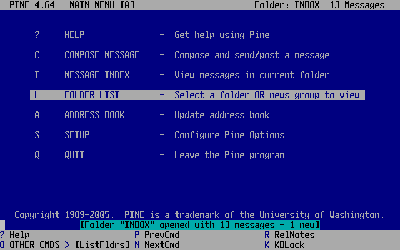
    Pine screenshot

    Files were small and you carried them around with you on things that we called stiffies. The Americans called them 3½-inch floppy disks. The capacity of a stiffy was 1.44 MB. This was enough for most of your work in a semester. Stiffies were notoriously unreliable, so you never really worked on the disk only, because for all you knew, they could die tomorrow. Stiffies were for moving files from one computer to another, not for long-term storage. Some people had CD writers, but campus computers didn’t.

    I didn’t have a computer in my res room until my second year, and when I did it wasn’t connected to any kind of network until third year. I could only check my mail and do IRC on campus computers.

    Once I got a computer in my room, an issue emerged: sometimes I would start working on something in my room and I would need to continue working on it on campus. So I would copy it to a stiffy and ride my bike to campus, where I would copy it over and keep working. This process led to copies of the files on both machines with no clear way to keep track of which one I had worked on last. So if I forgot my disk on my desk and worked on the campus copy instead of the version I had in my room, things would break. Luckily files were small at first, but technology rapidly improved and by final year (2000) we had CD writers. At this point, we had Internet connections, but they were so slow that it was much faster to burn a CD and bike to campus than to send the data over the Internet. The fastest dial-up modem speed was 56 kbps, which would require more than a day to transfer the 700 MB that fits on a CD.

    For my entire undergraduate career, therefore, I could never sync my account on campus with my computer at res or the one at home. I just had some random files in various places which I had to transfer piecewise.

    Postgraduate: two computers, external HDD

    When I enrolled for my Masters in 2001, I moved into a lab and got assigned a computer. Now I had a computer in my room at res and one at the lab and I often found myself having to transfer files between them. I installed a removable hard-drive bay enclosure and had a hard drive that I would shuttle between the two locations. Moving things this way was a big deal. IDE hard drives don’t support hot-swapping, so I would sync to the hard drive, turn off my computer, remove the hard drive and then boot up with the hard drive in place at the new location. I believe that this hard drive was either a 500 MB or 1 GB. It is around this time that I started using Unison to sync the external hard drive to the machine where I was working. This meant I could survive forgetting to bring the hard drive to the lab, since Unison stores a hash of all the files and can recognise if two files have changed. I synced basically all of my files except for music files and movies, which were too large to fit on this external hard drive.

    Two desktops, laptop, local network

    When I started working for the University of Pretoria in 2003, I continued to use the HHD sync strategy for a while, and when I got a laptop, I started treating it similarly to the HHD – I would use Unison, but now using the (wired) network to connect the machines instead of plugging in a hard drive. I continue to use this strategy today. Every morning before starting to work on my desktop, I sync. Every evening before leaving, I sync. This way I have a complete copy of my working files on both machines (my laptop and my desktop). This provides a level of redundancy (I don’t think of this as a backup strategy, that’s handled by Bacula on my desktop and these days by Time Capsule on my laptop).

    A change: cheap Internet

    During my first couple of years at the university, we were charged R1/MB for internet access. Let me repeat that in units that make more sense to a modern reader: that’s R1000/GB. This means that any kind of large file transfer using the Internet was completely out of the question. It also led to me turning into a packrat. Since downloading software or even articles was so expensive, I developed a huge folder of downloads that I would maintain to avoid having to re-download files.
    Rummaging around my old e-mail, I find that in 2005 we had a limit of R60/month in place. That’s right, ten years ago the University limited my monthly bandwidth to 60 MB. In 2011 we were being charged 16 c/MB (R160/GB) on student access, but staff caps had been dropped. 
    Dropbox launched at the end of 2008, registering dropbox.com in 2009. This is when the idea of easily syncing files over the Internet really started taking hold. I think I installed Dropbox in 2010, when our IT department dropped caps.
    At the moment I use Dropbox for sharing files with other people and I still use Unison to handle syncing the files on my laptop and my desktop.

    A remaining issue: campus proxy/firewall

    Even though we are no longer charged for Internet access on campus, we still have to log in to our proxy server to get access to the Internet. This does not work transparently for all applications. In addition, for obvious reasons, we can’t set up a server on a machine inside campus which will be visible off-campus. I have only recently (early 2015) been able to set up a virtual machine inside our DMZ which would allow me set up a central repository for files.
    I have to switch Dropbox between proxy and no proxy every time I move from home to campus.

    Side-effects

    Because I built my syncing strategy when Internet access was either slow or expensive or both, and because I’ve been working on two different computers regularly, I have avoided dependence on client-server technologies. Specifically, I have not depended on a client-server database like MySQL or PostgresSQL. Instead, when I required SQL database functionality, I’ve use SQLite, which allows me to continue with the file-based syncing strategy.
    But now I’ve started investigating NoSQL technologies like Mongodb or Redis (and later, perhaps something like Hadoop). It doesn’t appear as though these things have a simple file-based alternative similar to SQLite.

    Why change what works?

    It is clear from my interaction with industry that their model is very solidly built around central databases with access from clients. This is a similar model to all the Internet services we use now. I’m familiar with setting up these systems, but my students and I often have only intermittent access to the the Internet. The students because they can’t afford it, myself because I travel using the Gautrain, and often have to work in a disconnected state. Not to mention load shedding.
    Now I am interested in building a better system which has some of the nice properties I have come to rely on with Unison, or at least allows for limited offline use with periodic syncing. I know this will not be as simple as setting up two directories to sync, but I’m getting the horrible feeling that each system will have its own problematic story and that the central server strategy is just a way of avoiding sync rather than a solution.
    If anybody has a suggestion, I’d be pleased to hear it.